
I have worked on many small tools, scripts and experiments over time, but Labby is the biggest project I have built so far.
Labby is a self-hosted homelab inventory, rack and topology tool. It helps you document your hardware, virtual machines, LXCs, apps, networks, IP addresses, rack layouts and relationships in one place.
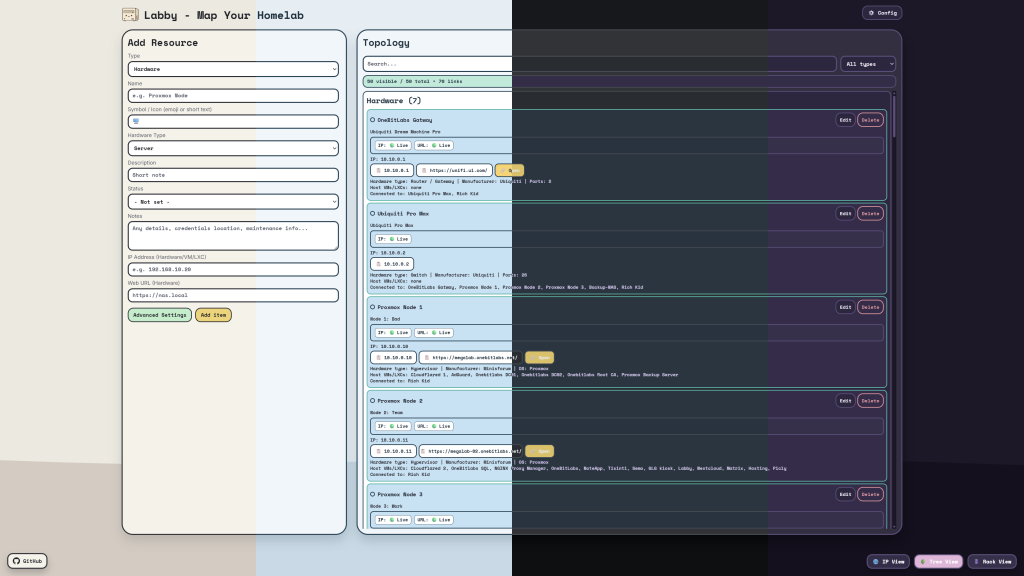
You can try the demo here:
The demo saves everything in your browser only. The self-hosted version uses persistent backend storage, so all devices and browsers can access the same data.
Why I Built Labby
Like many homelab users, I eventually reached the point where “I remember where everything is” stopped working.
A few notes were enough at first. Then there were more servers, VMs, containers, services, VLANs, IP addresses, ports, reverse proxies and backup systems. Simple questions started taking longer than they should:
Where is this app running? Which VM hosts it? What IP did I give that device? Which server is in which rack?
I wanted one tool that could answer those questions without turning into a full enterprise CMDB. That is how Labby started.
What Labby Does
Labby lets me create hardware, VMs, LXCs, apps, networks, locations and racks, then add the information that is useful for each resource. That can include things like the operating system, manufacturer, CPU, RAM, disks, IP addresses, ports, URLs and notes.
The important part is that these entries do not have to exist as isolated cards. Labby can describe how they belong together. An app can run on a VM, that VM can run on a Proxmox host, the host can connect to network infrastructure, and the physical device can also be placed in a rack.
That relationship data is what turns Labby from a simple inventory into a map of the homelab.
Tree View and Graph View
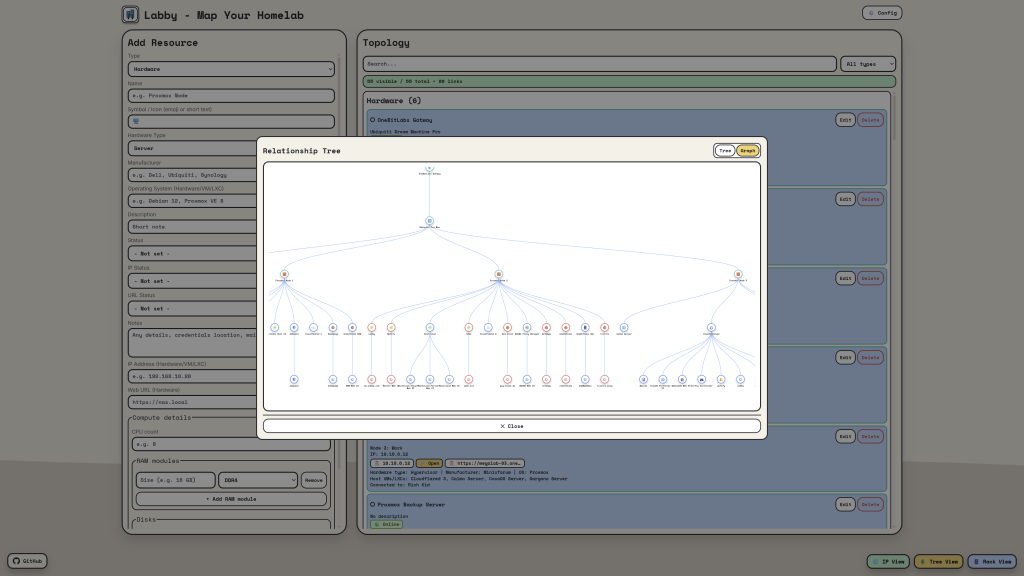
One of the most useful features is the relationship view.
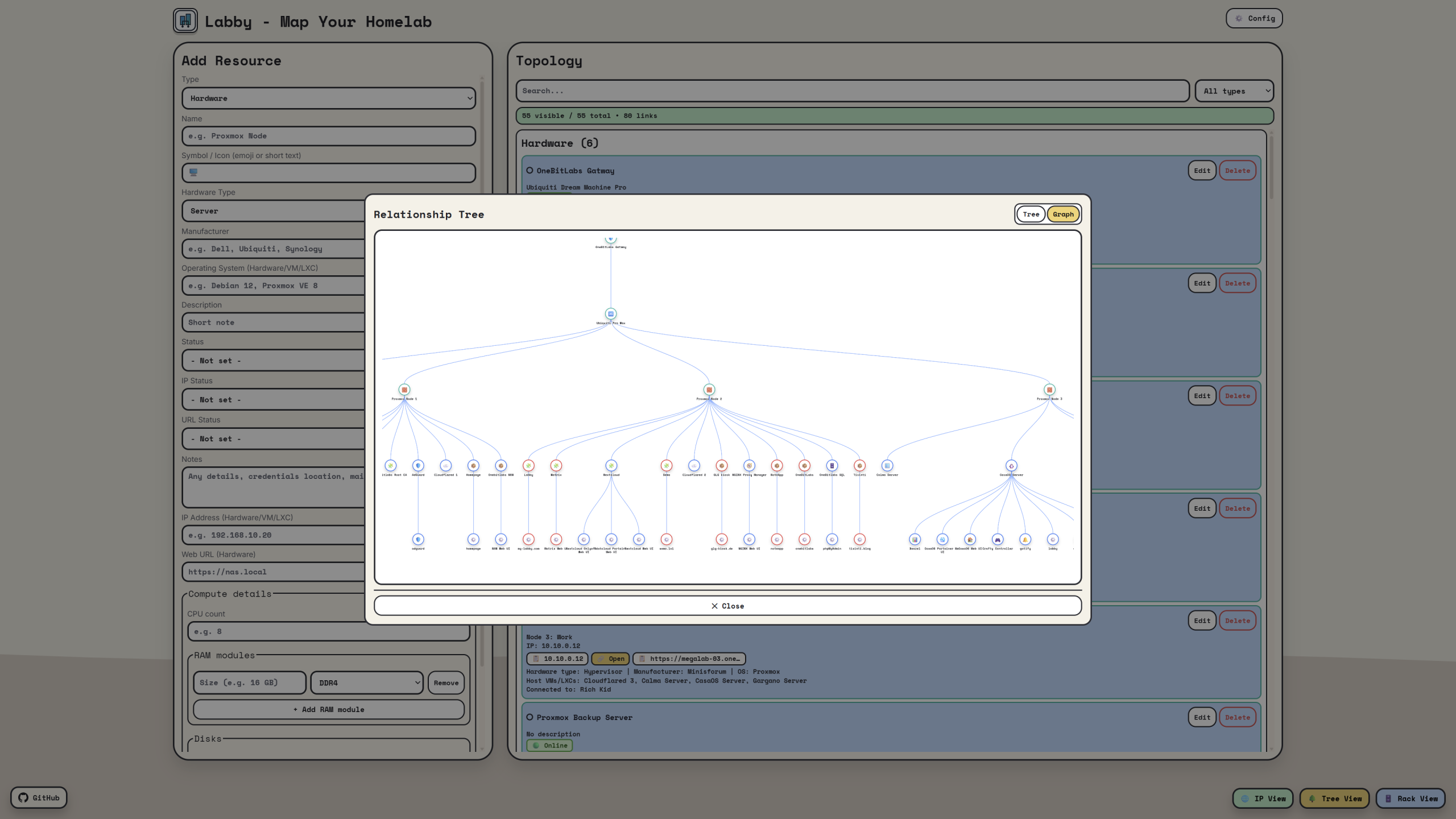
The Tree View shows your infrastructure in a classic structured way. This is useful when you want to see which VMs or LXCs belong to which hardware host, and which apps belong to which VM or container.
The Graph View gives a more visual overview. Resources are shown as connected bubbles, and Labby tries to center and zoom the graph so the most important part of the topology is visible immediately.
Names are shown directly under the bubbles, and clicking a node opens the resource for editing.
This was one of the more difficult parts to get right because a real homelab graph is rarely clean. Some nodes have many children, some relationships are wide, and some connections create long branches. Making the graph useful by default took a lot of iteration.
The IP View solves a different problem. It groups used addresses by subnet, shows which resource owns an address, and makes it much easier to search for an IP, hostname or port without going through every card manually.
192.168.20.21:9000
192.168.20.22:8096
192.168.10.40:3000
Rack View
A big feature is also the Rack View.
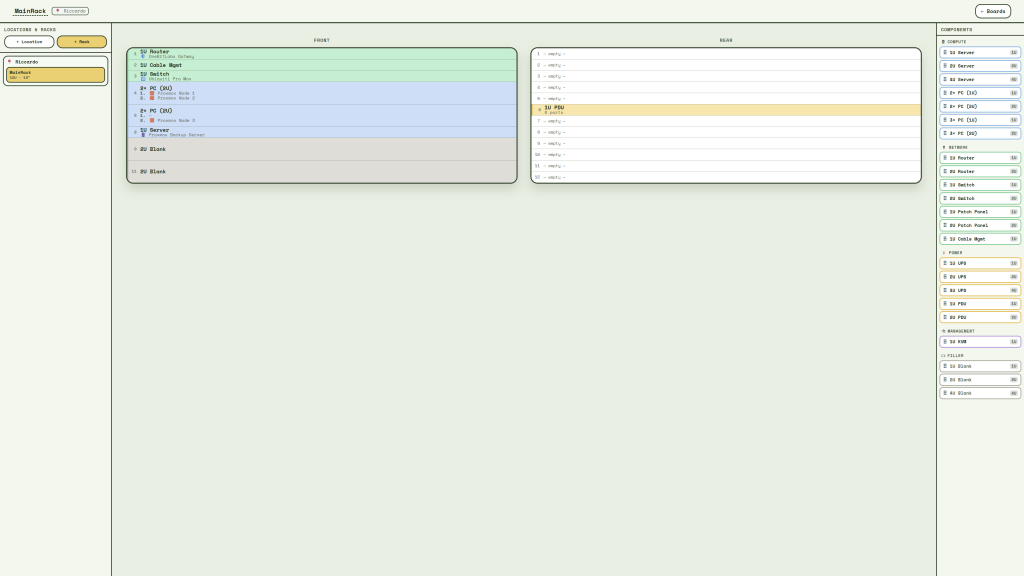
This was important to me because many homelab diagrams stop at the logical level. They show services and hosts, but not where things physically live.
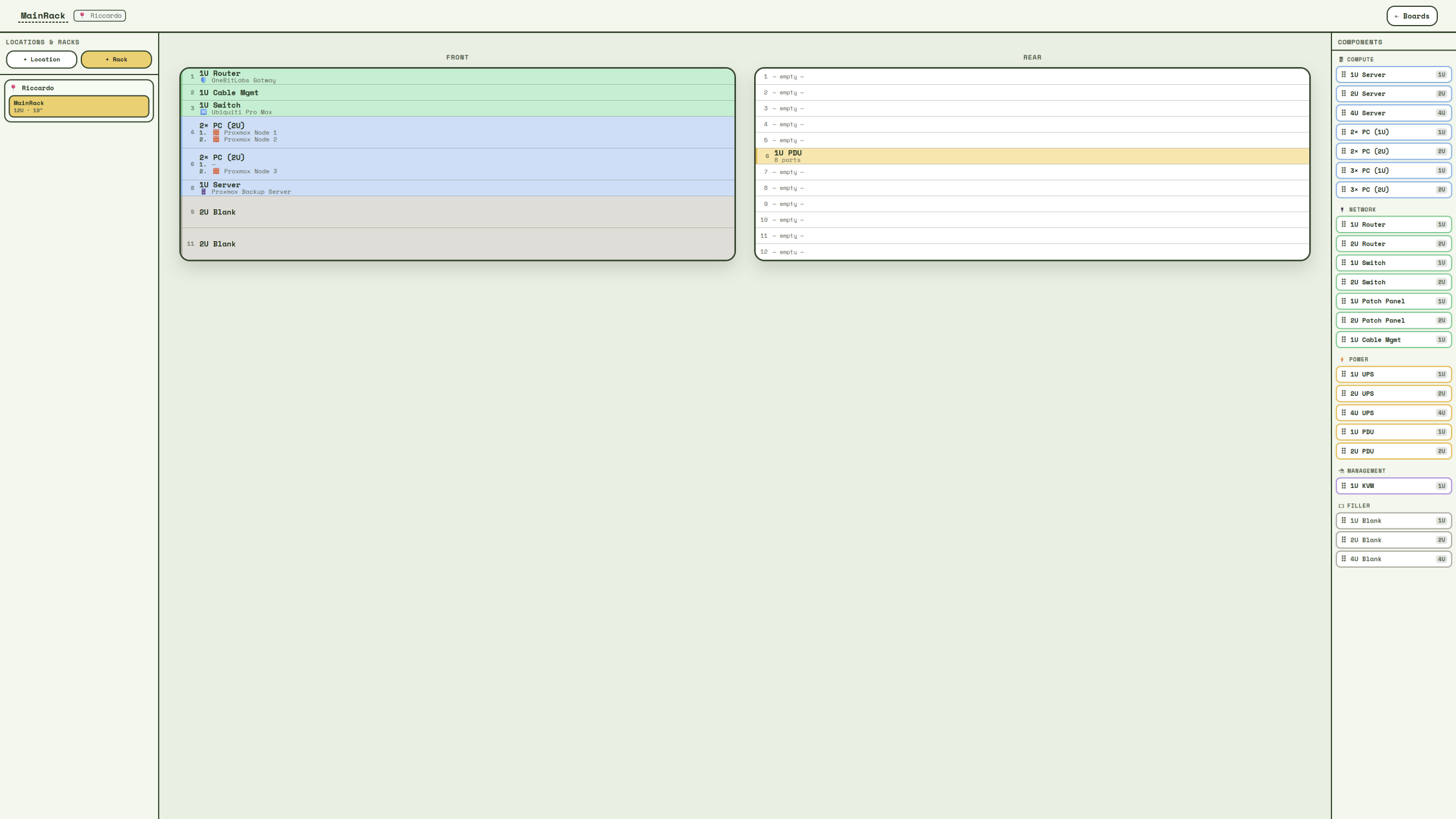
Rack View lets me create locations and racks, work with front and rear layouts, place components in rack units and link those components back to actual Labby resources. That means the server shown in the rack can represent the same server that exists in the inventory instead of being just a drawing.
This gives me both the logical and physical view of the same environment in one application.
Themes and Customization
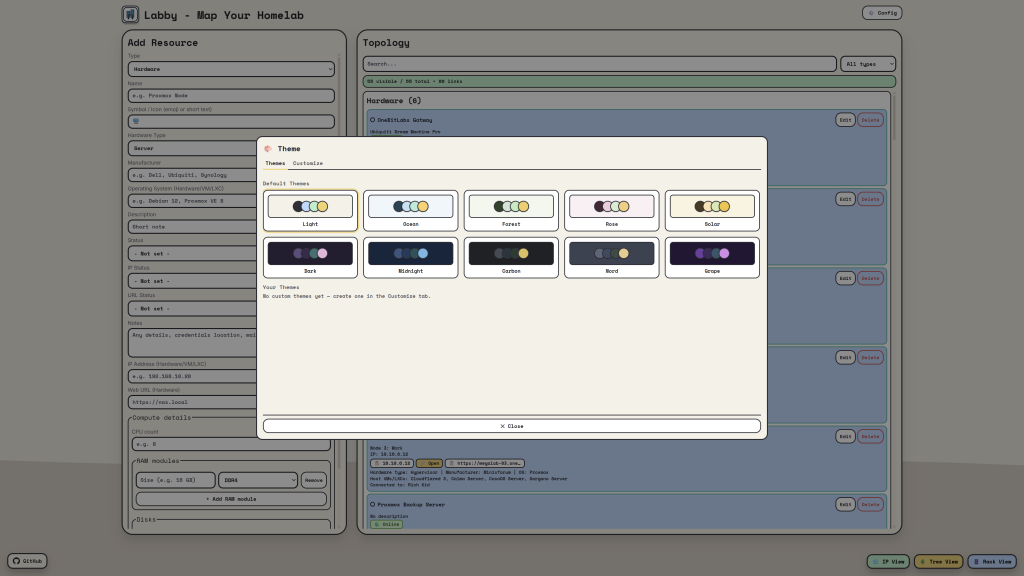
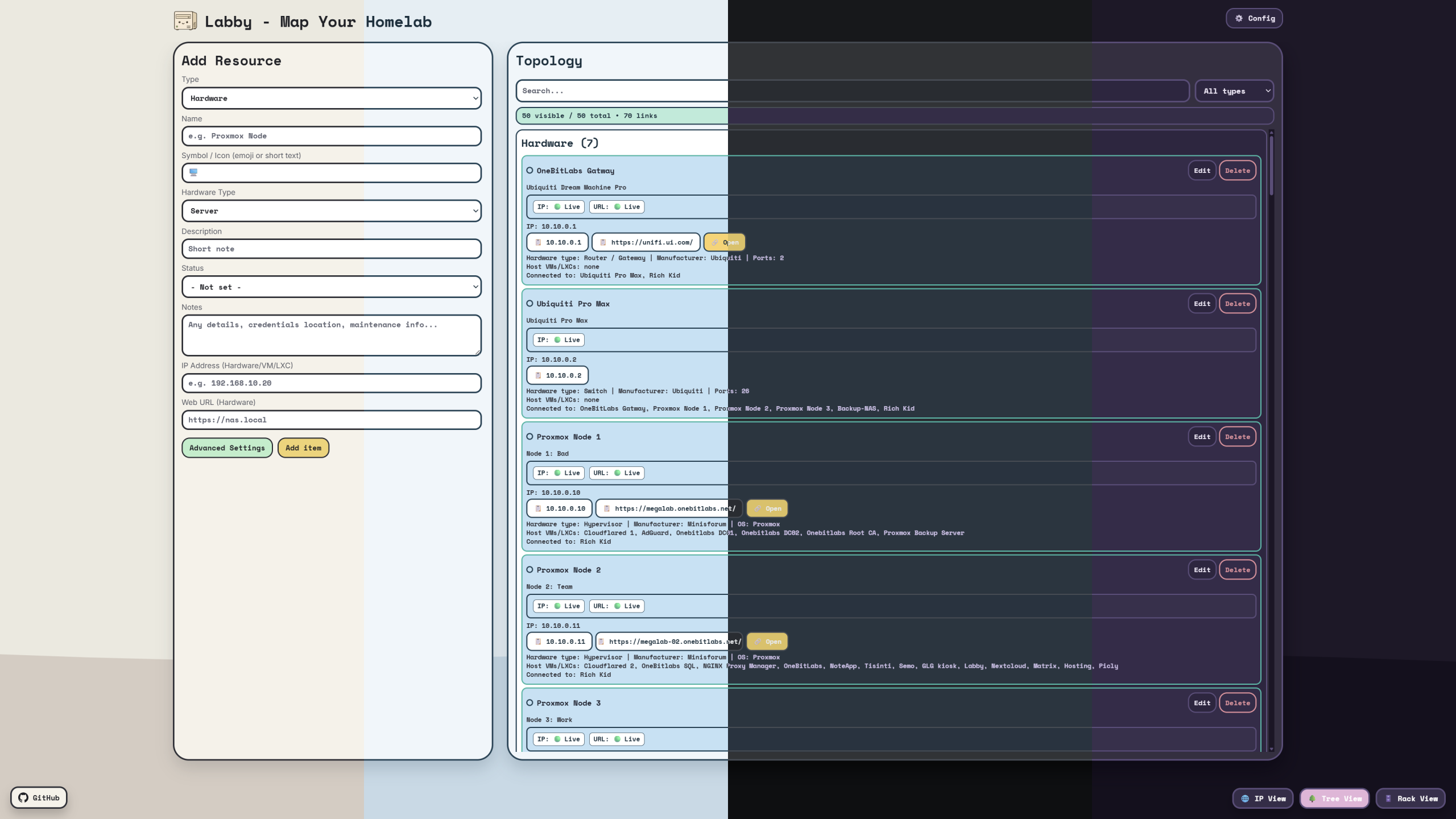
Labby also includes a theme system.
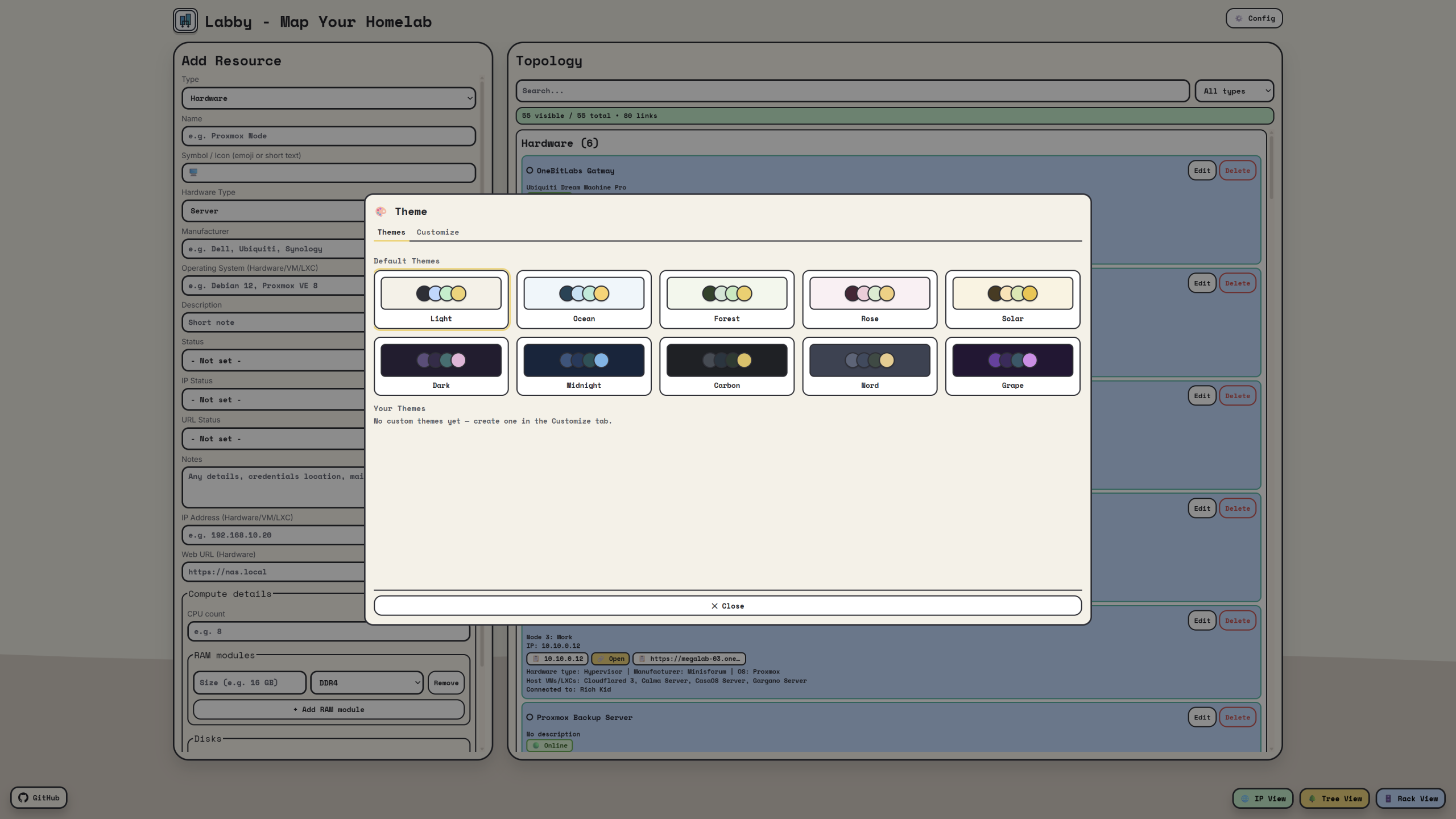
There are multiple built-in themes, and you can create your own custom themes inside the UI. Custom themes are saved and included when exporting your config.
The active theme is also exported and restored on import.
This sounds like a small feature, but for a tool you might keep open often, appearance matters. A homelab dashboard should feel like your own.
Import, Export and Persistent Storage
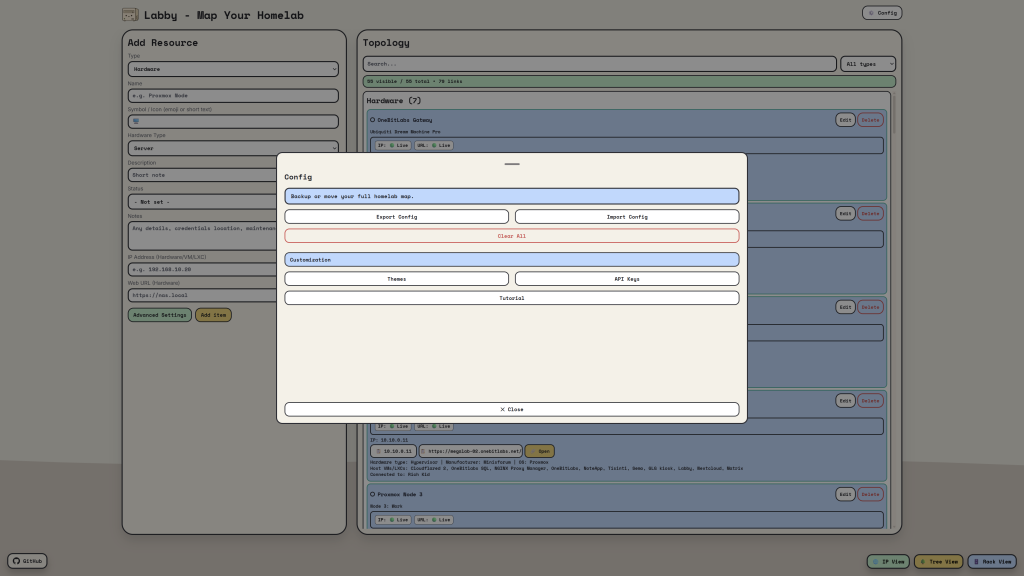
The self-hosted version stores its persistent data in the backend using a Docker volume. It is not tied to a single browser, so different devices connected to the same Labby instance see the same homelab data.
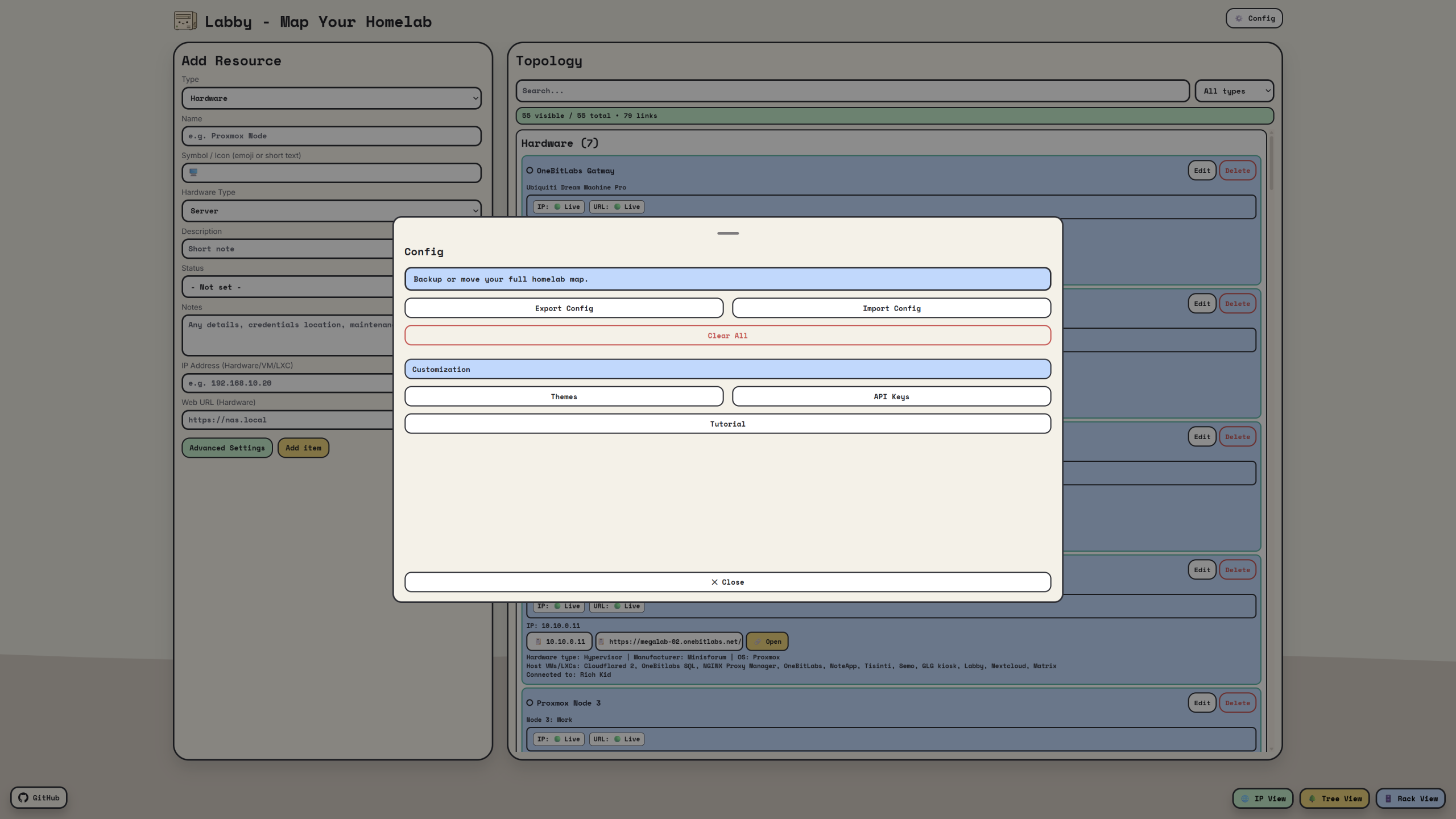
Labby can also export and import its configuration. Resources, locations, racks, relationships, themes and other configuration can be moved between installations or kept as an additional backup.
Implemented CLI Tool
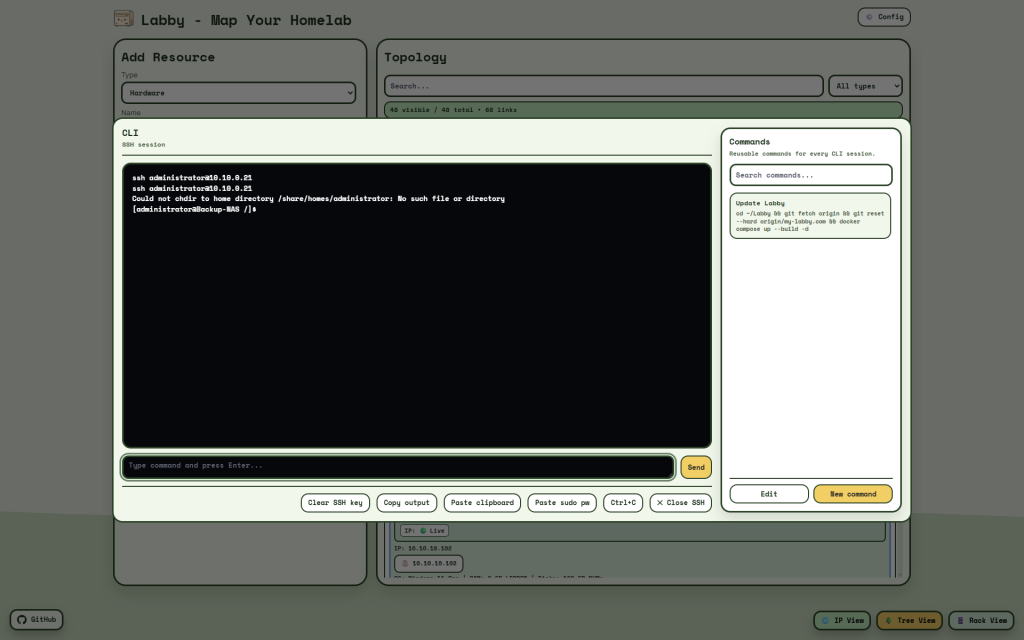
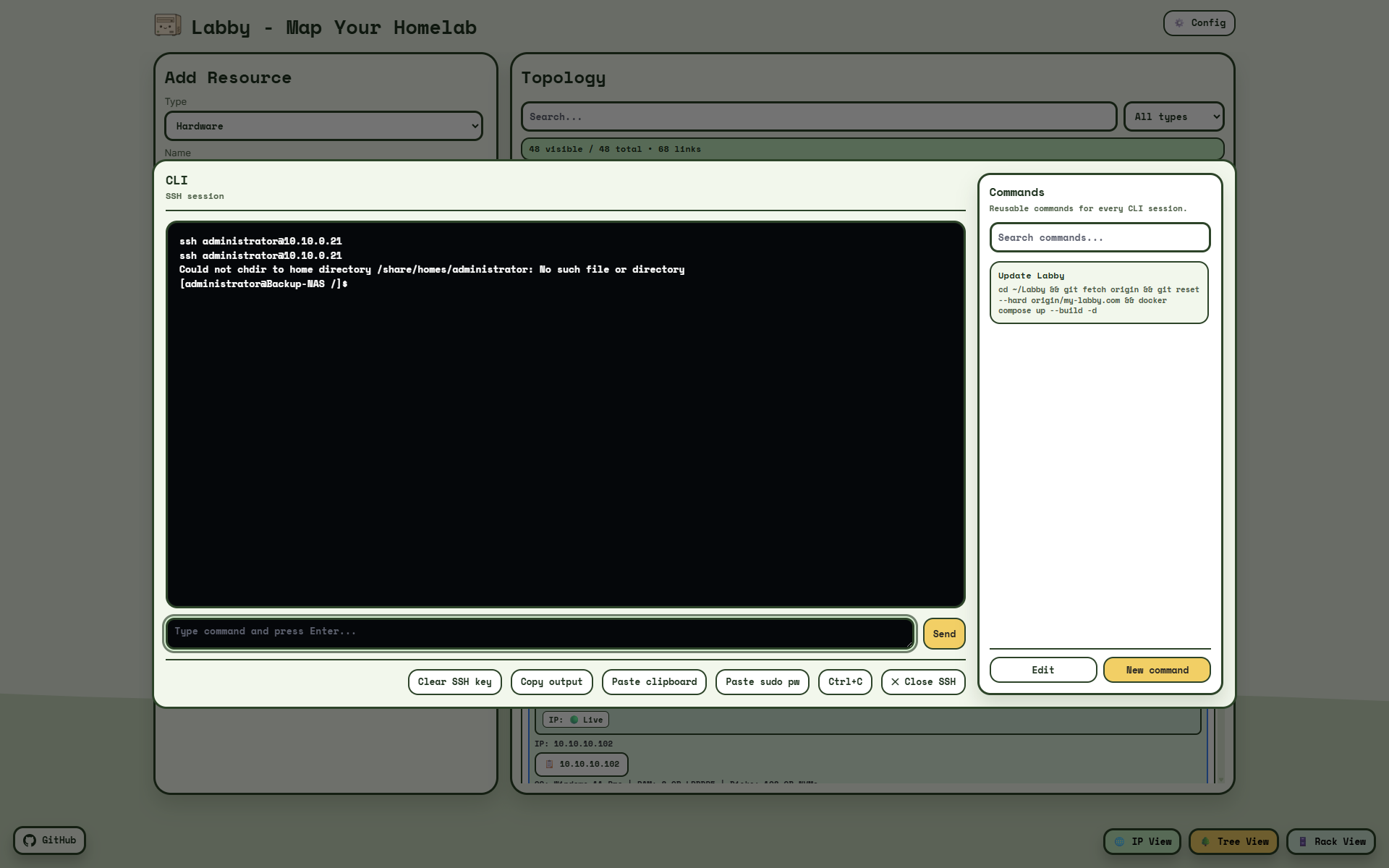
Labby now includes an integrated CLI tool for quick SSH access directly from your homelab map.
With the CLI, you can connect to your devices without leaving Labby. Stored credentials and SSH keys can be reused for faster access, so you do not have to enter the same connection details again and again.
The CLI window also includes a reusable command library. You can save frequently used commands, search them, and run them whenever you need them. This is useful for update commands, maintenance tasks, Docker Compose workflows, log checks, and other recurring administration steps.
Common CLI actions such as clipboard paste, sending the saved sudo password, interrupting running commands with Ctrl+C, and closing the SSH session are available directly in the interface.
All CLI-related settings, saved command snippets, credentials, and relevant configuration data are included in Labby’s config backup system.
Demo Version
I also created a demo version at:
The demo is intentionally different from the self-hosted version. It stores data only in the browser and automatically loads demo entries.
This lets people try Labby without installing anything.
The demo includes example networks, hardware, apps and racks, so visitors can immediately see what Labby is meant to do. On the website you can also find a fulle stretched out wiki.
Built With AI Assistance
One thing I want to be transparent about: Labby is a vibe-coded project built mainly with help from Codex by OpenAI and Claude by Anthropic.
I used AI heavily during development, but the project direction, testing, feature decisions and iteration came from my own needs and ideas.
This workflow helped me move much faster than I could have alone. At the same time, it also meant I had to test a lot, fix many small issues and continuously refine the UI until it worked the way I wanted.
Installation
Labby can be self-hosted with Docker.
services:
  labby:
    image: techbygiusi/labby:latest
    container_name: labby
    ports:
      - "8080:80"
    volumes:
      - labby-data:/data
    restart: unless-stopped

volumes:
  labby-data:
To start it:
docker compose up -dThen open:
http://localhost:8080To stop it:
docker compose downData is stored in a Docker volume and survives container restarts.
How Labby Works
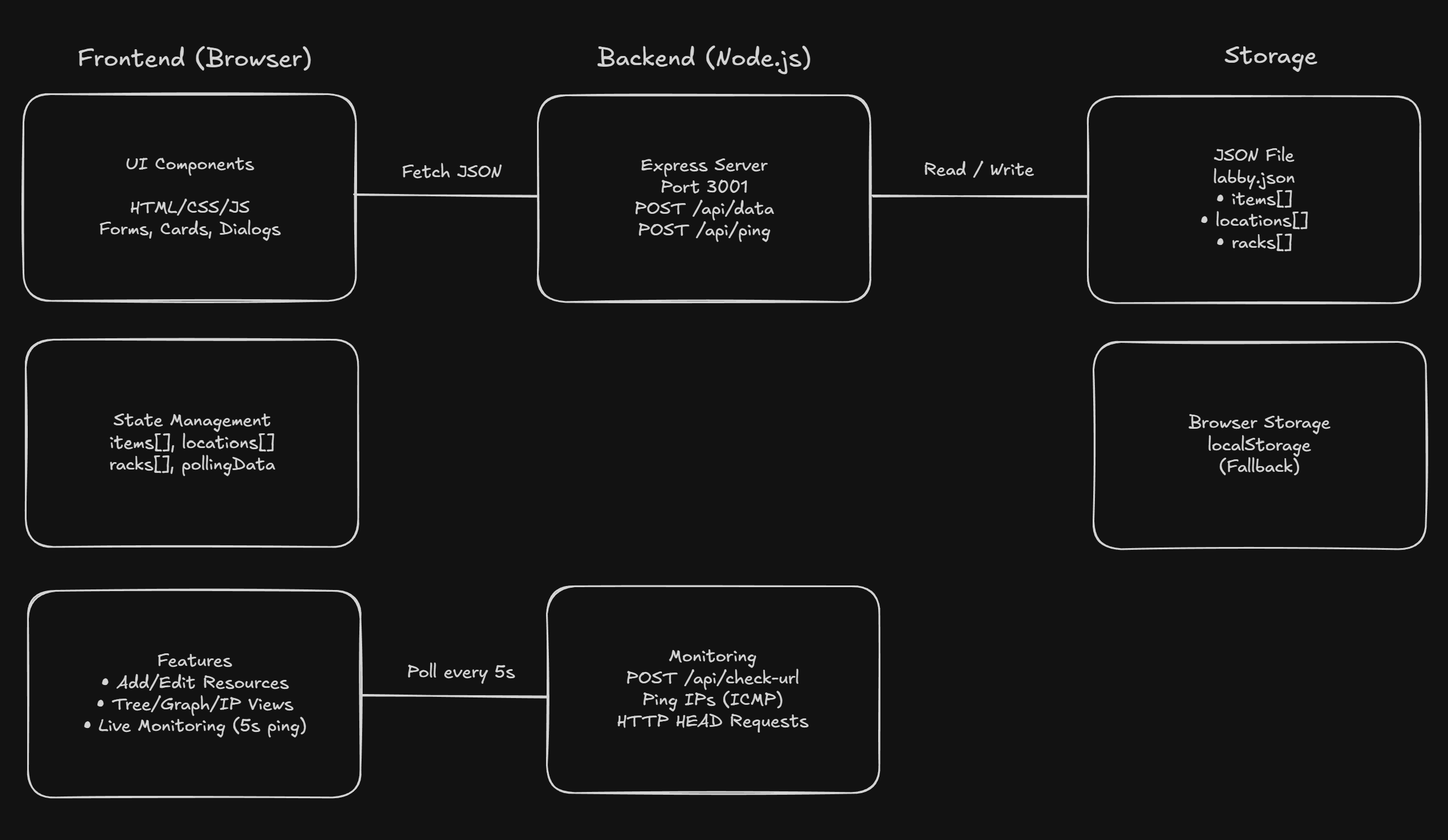
Labby has a clean architecture: Frontend-first with optional backend.
When you add a resource, the frontend displays it instantly. Changes sync to the backend, which stores your data permanently as JSON. This means you can access the same homelab map from any device.
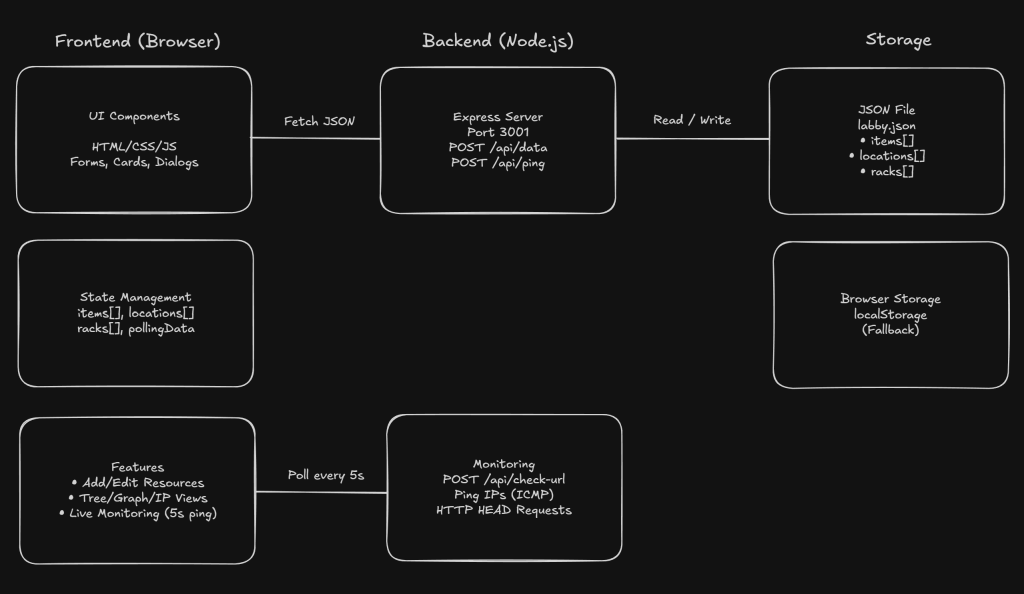
Live Monitoring is one of the unique features. You can set a resource’s status to “Live” and Labby automatically pings IPs and checks URLs every 5 seconds. Status updates appear on your cards in real-time-🟢 online, 🔴 offline.
Everything connects. An app runs on a VM. The VM runs on a Proxmox host. The host connects to a switch. The switch belongs to a network. This relationship data powers Tree View, Graph View, and IP tracking. One array stores all connections, and the UI visualizes them automatically.
The self-hosted version stores data in Docker, so your homelab map persists and syncs across devices. The demo version uses browser storage only—no installation needed to try it.
Final Thoughts
Labby started as a simple idea: I wanted a better way to map my homelab.
It has now grown into my biggest project so far, with inventory management, topology views, IP tracking, rack layouts, themes, mobile support and persistent storage.
There is still more I want to improve, but I am proud of how far it has come.
If you run a homelab and want a clean way to document it, give Labby a try:
And if you want permanent storage, self-host it.
Leave a Reply