
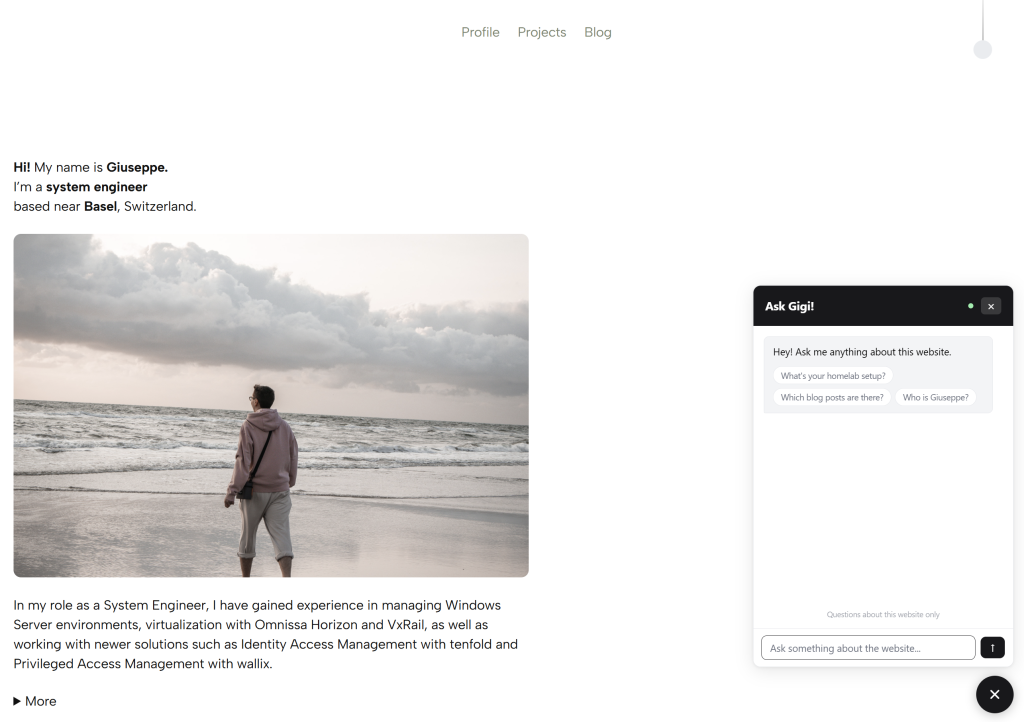
A while ago I started thinking about adding a small AI assistant to this website — something visitors could ask about my projects, my homelab setup, or my blog posts. Not a generic chatbot, but something that strictly knows only this website and nothing else.
What followed was a weekend of building a custom WordPress plugin from scratch, a lot of debugging, and quite a few iterations. This post covers how it works, every security measure that’s in place, and how you can add it to your own WordPress site.
↓ Skip to the bottom for the download link.
The Idea
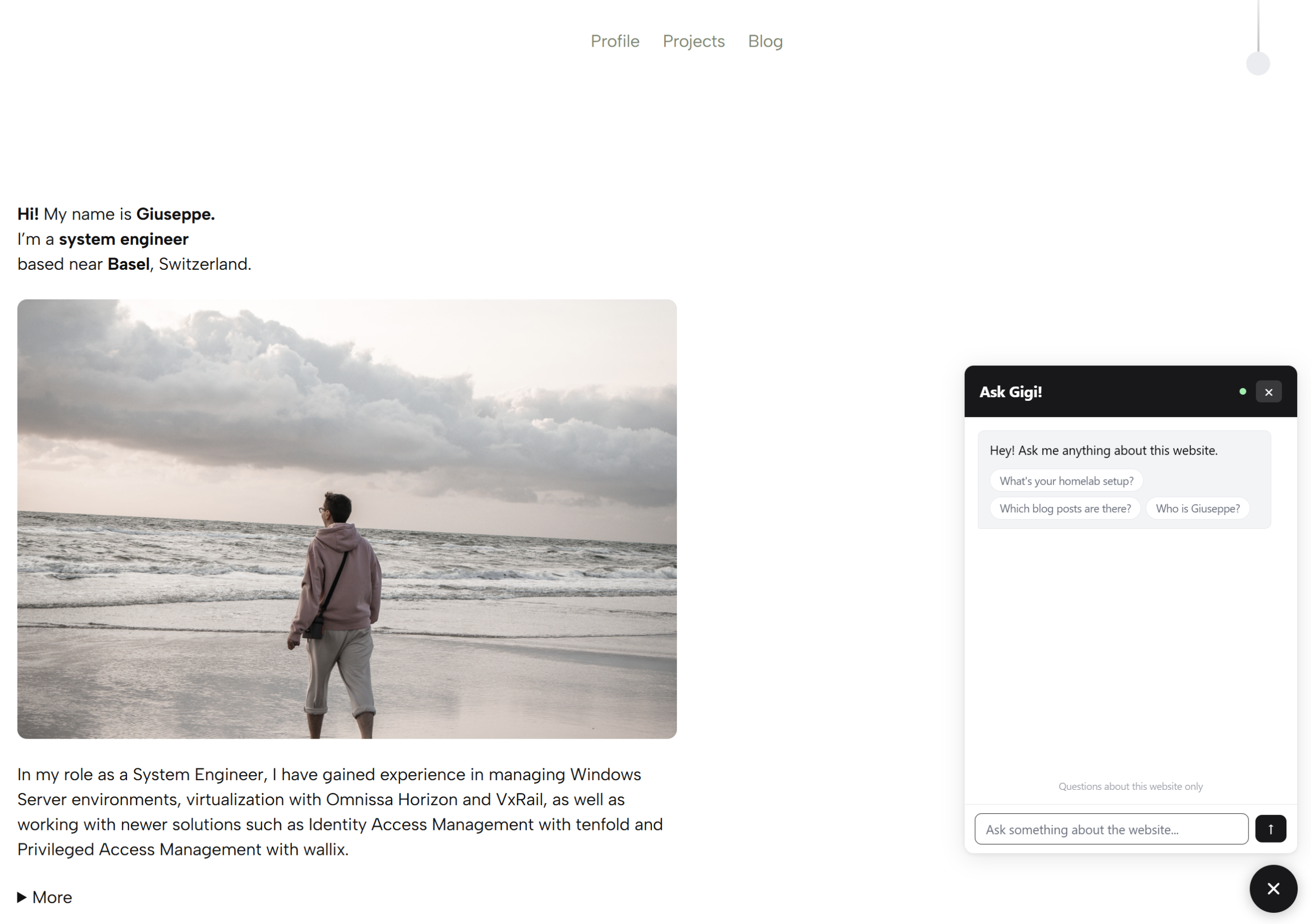
The concept is simple: a floating chat widget that lets visitors ask questions about the website. If someone asks “What’s your homelab setup?” or “Do you have a guide on Proxmox?” The agent answers based on the actual content of the site. If someone asks about something unrelated, it politely refuses.
The agent is powered by Anthropic’s Claude API. It runs as a WordPress plugin — no external services, no third-party tracking, no ads.
Architecture
Three parts work together:
- The widget – a floating chat button and window on the frontend
- The PHP proxy – a WordPress AJAX endpoint that forwards messages to Claude
- The admin panel – a settings page to configure everything
The critical design decision: never call the Claude API directly from the browser. Anyone who opens DevTools would see the API key. Instead, every chat message goes through a server-side proxy:
Browser → WordPress AJAX (PHP) → Anthropic API → PHP → BrowserThe API key never leaves the server.
How It Works
The Widget
A single widget.js file injects a floating FAB button and chat window into every page. When a visitor opens the chat, it builds a message history and sends each new message to the WordPress AJAX endpoint.
Responses are rendered with a lightweight markdown parser — bold, italic, code, bullet lists, and clickable links all work out of the box.
async function callProxy() {
    const params = new URLSearchParams({
        action:   'swpa_chat',
        nonce:    CFG.nonce,
        messages: JSON.stringify(history),
    });
    const res = await fetch('/wp-admin/admin-ajax.php', {
        method:  'POST',
        headers: { 'Content-Type': 'application/x-www-form-urlencoded' },
        body:    params.toString(),
    });
    // handle response...
}
The PHP Proxy
The proxy is a WordPress AJAX action that:
- Validates the WordPress nonce
- Checks the request origin against the site’s own domain
- Checks the per-IP rate limit
- Builds the system prompt server-side (including live post content)
- Forwards the conversation to Claude via
wp_remote_post - Returns the reply as JSON
$response = wp_remote_post( 'https://api.anthropic.com/v1/messages', [
    'timeout' => 30,
    'headers' => [
        'Content-Type'      => 'application/json',
        'x-api-key'         => $api_key,
        'anthropic-version' => '2023-06-01',
    ],
    'body' => wp_json_encode( $payload ),
] );
The System Prompt
Built dynamically on every request. It tells Claude:
- Which website it represents
- That it must only answer questions about this site
- What to say when someone asks something off-topic
- All current published posts and pages (title, date, URL, excerpt)
The agent always has up-to-date knowledge of your content without any manual syncing.
Security
API key never exposed to the browser
Stored in WordPress options (wp_options), only used in PHP. The frontend receives zero credentials.
WordPress nonce validation
Every AJAX request is verified with check_ajax_referer(). Missing or invalid nonce → 403. The nonce is generated fresh on every page load and tied to the session.
Origin / Referer check
The proxy compares HTTP_ORIGIN against the site’s own domain. Requests from any other origin are rejected. This prevents someone from copying the AJAX endpoint URL and calling it from their own domain.
$site_host = wp_parse_url( get_site_url(), PHP_URL_HOST );
$origin    = wp_parse_url( $_SERVER['HTTP_ORIGIN'], PHP_URL_HOST );
if ( $origin !== $site_host ) {
    wp_send_json_error( [ 'message' => 'Forbidden.' ], 403 );
}
Rate limiting per IP
Each visitor is limited to a configurable number of API requests per hour. The default is 10 per hour, which is plenty for genuine visitors but enough to stop someone hammering the endpoint. When the limit is hit, the request is rejected server-side before it ever reaches the Claude API.
The counter is stored as a WordPress transient and expires automatically after one hour. No cron jobs, no cleanup needed.
IP detection works in layers:
function tbg_get_client_ip() {
    foreach ( [ 'HTTP_CF_CONNECTING_IP', 'HTTP_X_FORWARDED_FOR', 'HTTP_X_REAL_IP', 'REMOTE_ADDR' ] as $key ) {
        if ( ! empty( $_SERVER[ $key ] ) ) {
            $ip = trim( explode( ',', $_SERVER[ $key ] )[0] );
            if ( filter_var( $ip, FILTER_VALIDATE_IP ) ) return $ip;
        }
    }
    return '0.0.0.0';
}
It checks CF-Connecting-IP first (Cloudflare’s real visitor IP header), then X-Forwarded-For, then X-Real-IP, then falls back to REMOTE_ADDR. This means the rate limit targets the actual visitor even behind a proxy or CDN.
$cache_key = 'swpa_rl_' . md5( $ip );
$count     = (int) get_transient( $cache_key );
if ( $count >= $limit ) {
    wp_send_json_error( [ 'message' => 'Rate limit reached. Please try again later.' ], 429 );
}
set_transient( $cache_key, $count + 1, HOUR_IN_SECONDS );
The limit is configurable from the admin panel under Widget Settings. Setting it to something like 5 on a low-traffic personal site keeps API costs near zero even if someone tries to abuse it.
Input sanitization
All user input passes through sanitize_text_field() and sanitize_textarea_field() before touching the API payload. Message roles are whitelisted to user and assistant only.
Strict topic scoping
The system prompt instructs Claude to refuse any off-topic question. Combined with the server-side controls above, it works reliably in practice.
Clean uninstall
When the plugin is deleted through WordPress, it removes its own wp_options entry via register_uninstall_hook. No leftover data.
Admin Panel
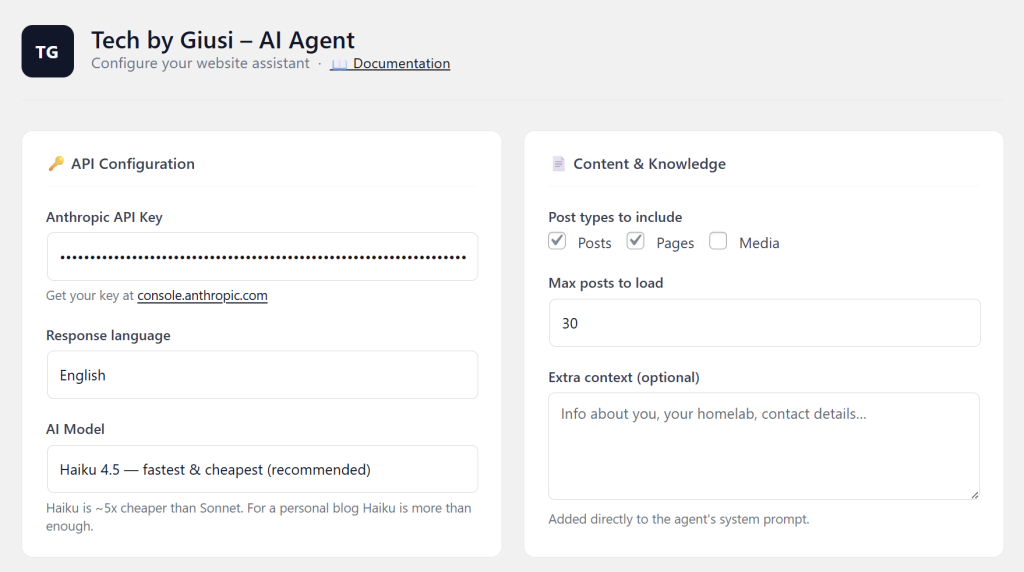
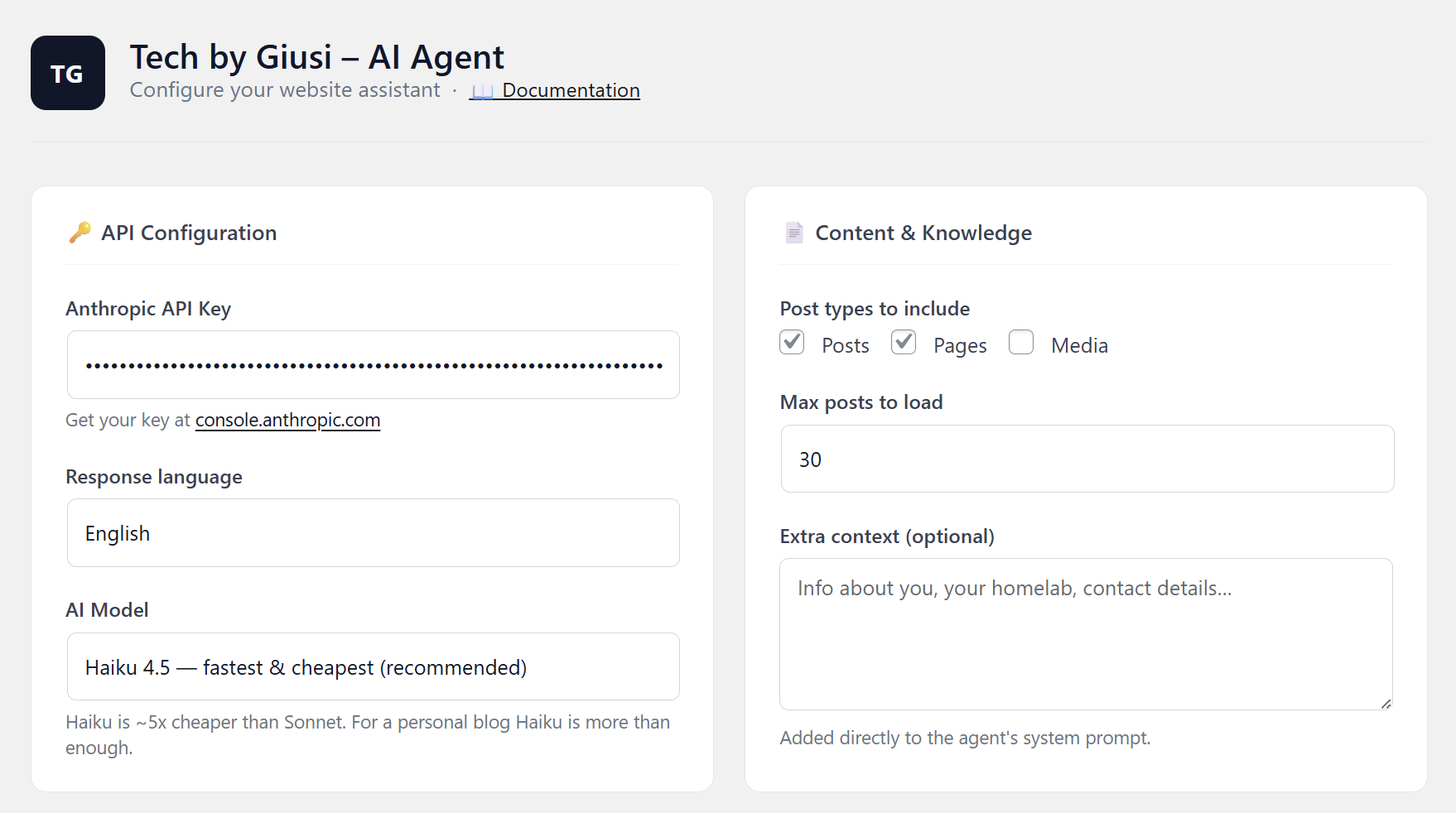
Everything is configurable from Settings → Simple WP AI Agent:
API Configuration
- API key (stored server-side, never exposed)
- Response language (English / German)
- AI model (Haiku / Sonnet / Opus)
Content & Knowledge
- Which post types the agent should read (posts, pages, custom types)
- Max number of posts to load
- Free-text extra context for things not published on the site (homelab specs, contact details, anything you want the agent to know)
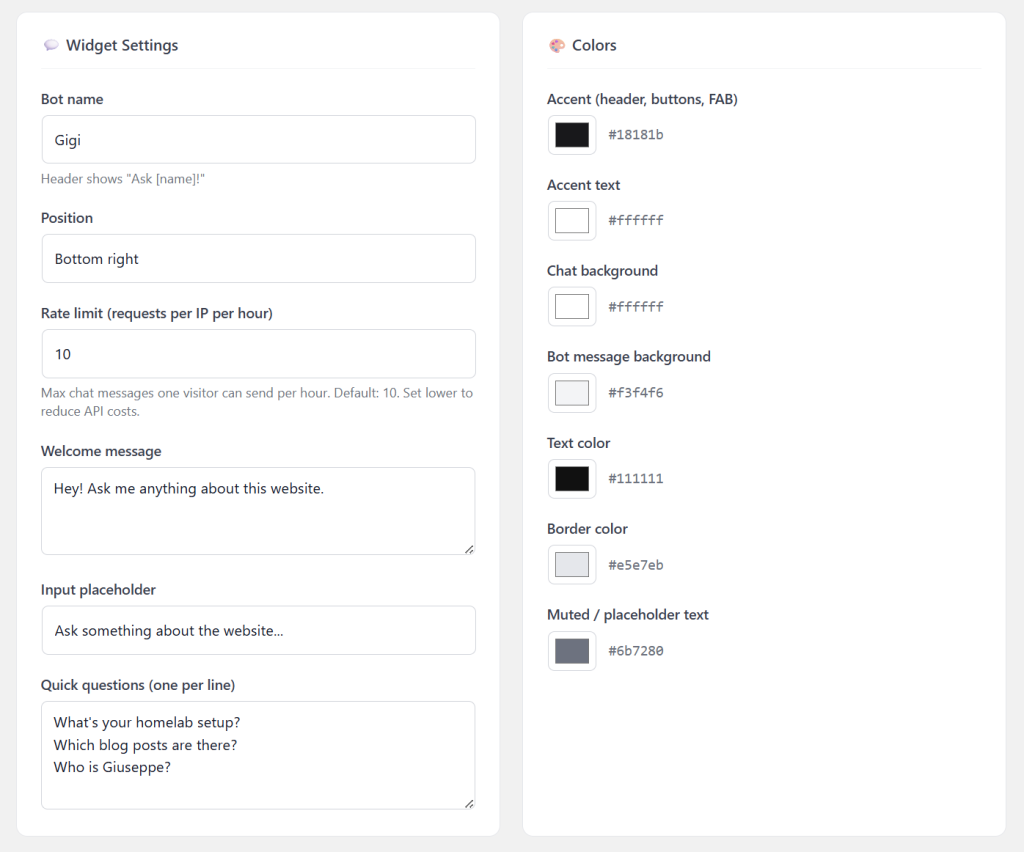
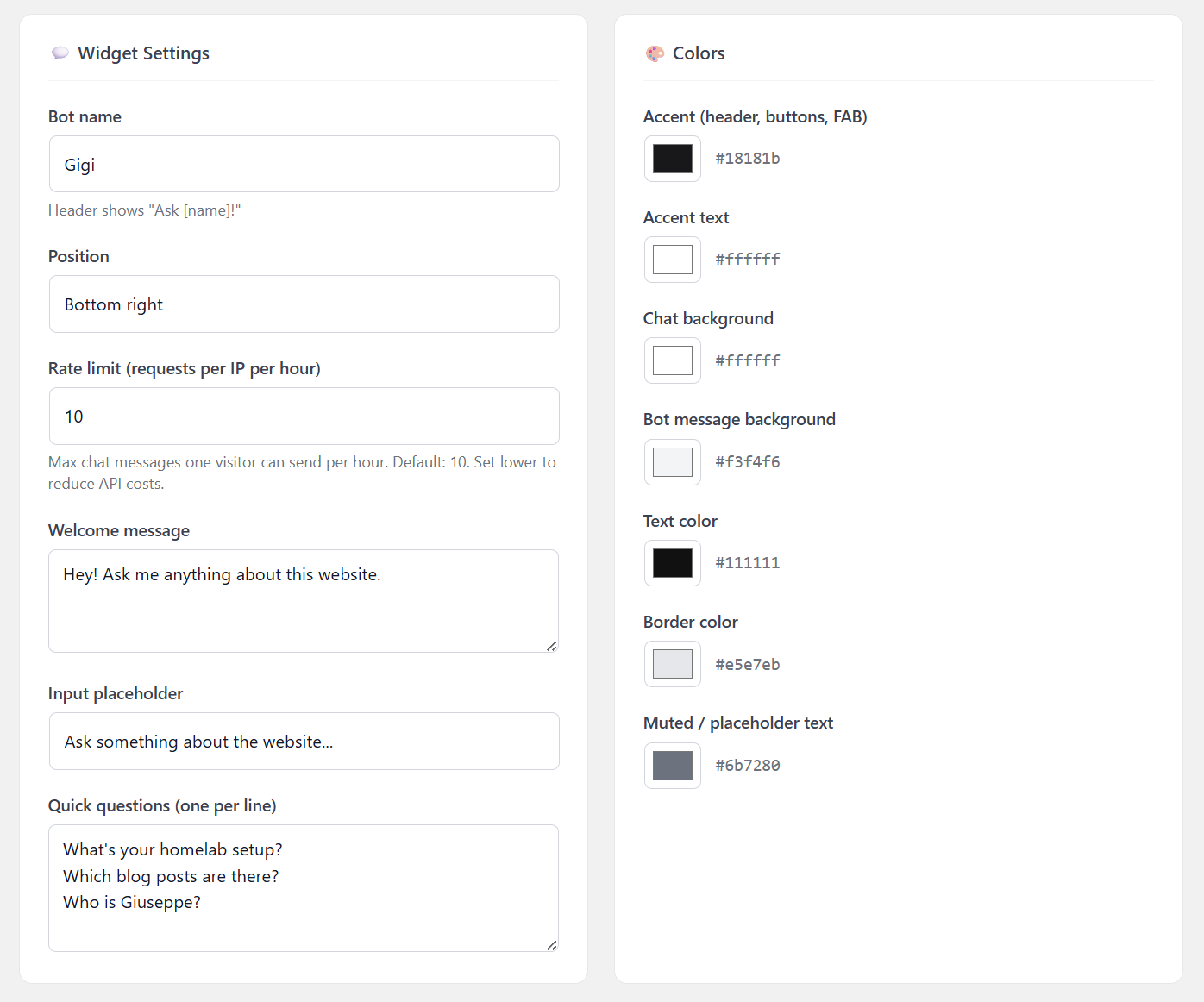
Widget Settings
- Bot name. The header shows “Ask [name]!”
- Position (bottom right or left)
- Rate limit per IP per hour
- Welcome message, input placeholder, quick question chips
Colors
- Full color picker for every element: accent, text, background, bot message background, border, muted text
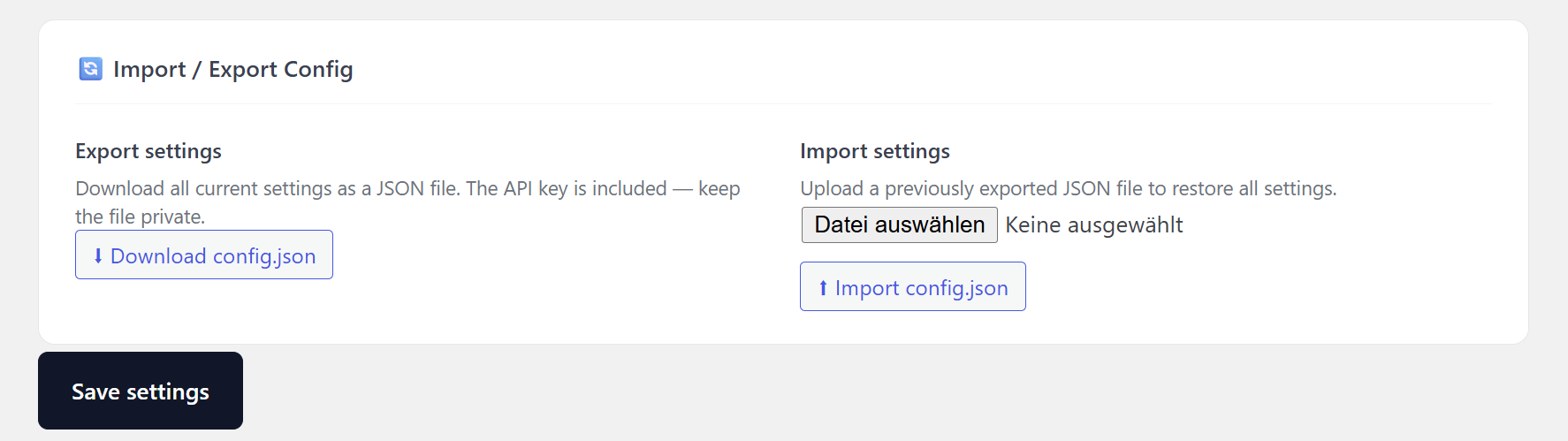
Import / Export
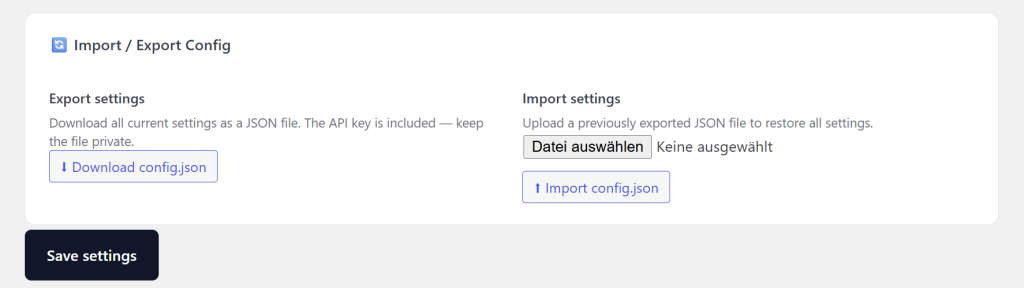
- Export all settings as a
config.jsonfile. Useful for backups or migrating between sites - Import a previously exported file to restore everything in one click
- Note: the export includes the API key, so keep the file private
Model Selection & Cost
| Model | Input | Output | Best for |
|---|---|---|---|
| Haiku 4.5 (default) | $1/MTok | $5/MTok | Personal sites, high volume |
| Sonnet 4.5 | $3/MTok | $15/MTok | Balanced, better reasoning |
| Sonnet 4.6 | $3/MTok | $15/MTok | Latest balanced model |
| Opus 4.5 | $5/MTok | $25/MTok | Maximum capability |
| Opus 4.6 | $5/MTok | $25/MTok | Latest, most capable |
At ~10 chats per day with Haiku, you’re looking at well under $0.05/month. The $5 in free credits Anthropic gives you when signing up lasts months on a personal blog.
Installation
- Download the ZIP below
- WordPress Admin → Plugins → Add New → Upload ZIP → Activate
- Settings → Simple WP AI Agent
- Get an API key at console.anthropic.com – free to sign up, $5 starting credits
- Paste the key, select your post types, adjust the widget to match your site
- Save. The chat button appears on every page
Download
The plugin is free. No hardcoded content, no tracking, no external dependencies beyond the Anthropic API. Works on any WordPress site.
Upload the ZIP to your WordPress, enter your own API key, set your bot name, pick your colors, add some context about your site. Done.
Leave a Reply